# Developing a UI with Vue, Part 3: Mobile Navigation
Making mobile navigation has always been fun for me, no matter how many times I do it. I don't know why, but something about designing a menu button and toggling the drawer navigation on and off screen has never stopped feeling like ✨ **magic** ✨ to me.
We left off laying the groundwork for our app in [my last post](https://blog.mattpignatore.dev/developing-a-ui-with-vue-part-2-getting-grounded-with-appvue), so let's begin by digging into the mobile `Navigation.vue` component.
## Adding the burger 🍔
When visiting most websites you'll often see menus, especially on mobile, become hidden behind a toggle button that looks like three lines stacked on top of one another. Semantically, these three lines represent a list of items like you'd see in any navigation menu. And as you might guess, they sorta look like a cheeseburger. **See how similar they are?**
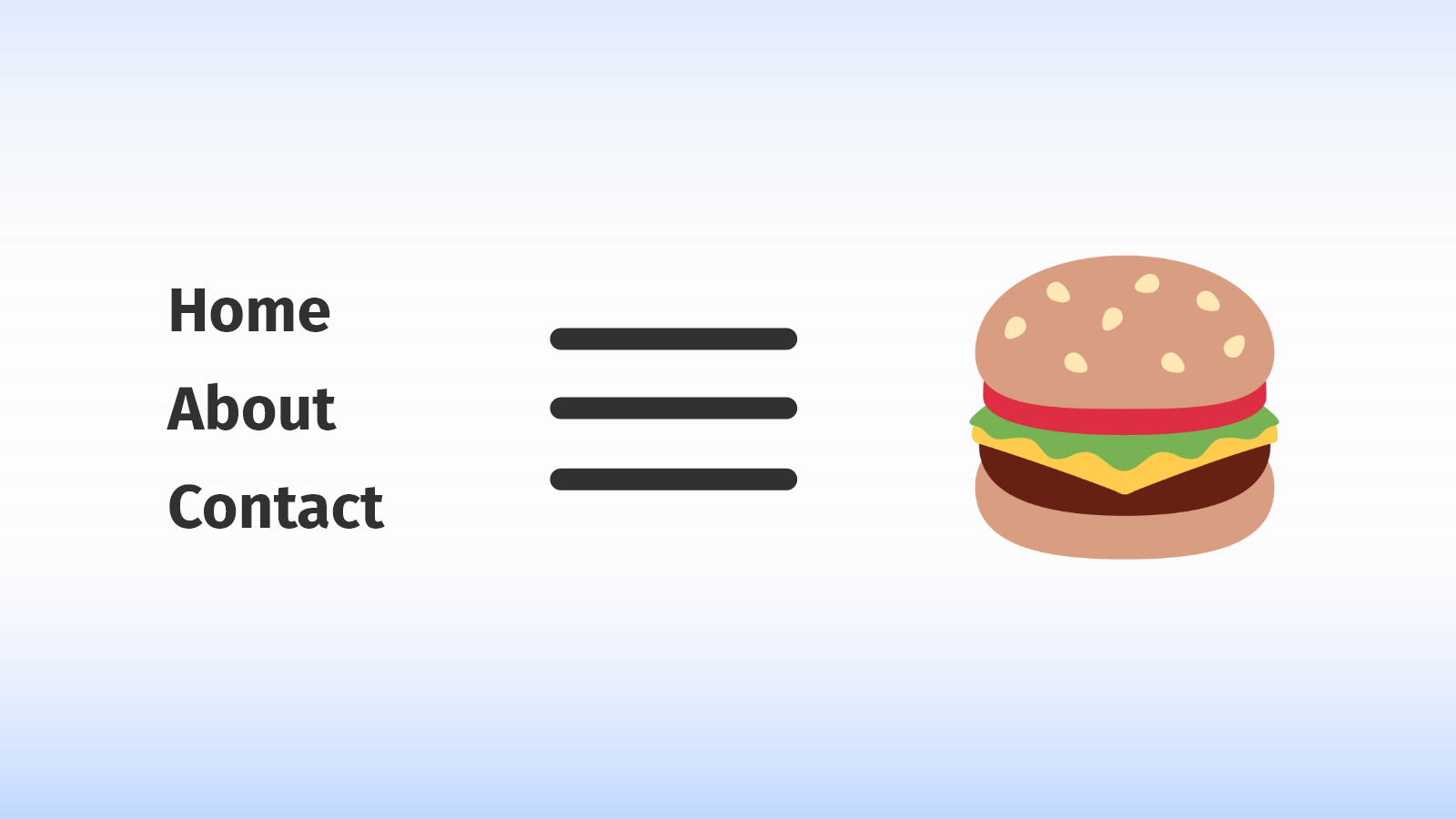
We'll start by marking up the burger in HTML, where we'll be using a two-line approach for simplicity:
```
```
And then we'll do the following:
- Place the burger markup right inside of our `` element.
- Wrap our `` in a container element. We'll use this to manipulate its style and behavior later on.
- Add an `
```
Once we have the burger in our template, we can style it:
- Begin by removing default button styles and setting the button dimensions.
- Define the base styles for each line in our burger (we have two of them). They're each going to be the full width of the button, but only a couple of pixels thick, separated by a margin above and below.
- The `&.open` syntax is a SCSS selector that styles the element when it has *both* classes. So when the `burger` class element also contains the `open` class, the lines are going to reposition themselves to form an ❌.
```scss
button.burger {
border: none;
background: none;
width: 38px;
height: 40px;
cursor: pointer;
z-index: 100;
.line {
width: 100%;
height: 2px;
border-radius: 20px;
background: $gray200;
margin: 12px 0;
transition: all 0.4s ease-out;
}
&.open {
.line-1 {
transform: translateY(7px) rotate(45deg);
}
.line-2 {
transform: translateY(-7px) rotate(-45deg);
}
}
}
```
**Tip**: I perfected the transform positioning by placing a border on the button and making edits in Chrome's Dev Tools. It's much easier to do there than to work directly in the code editor.
Once we're finished, we'll end up with something like this 👇
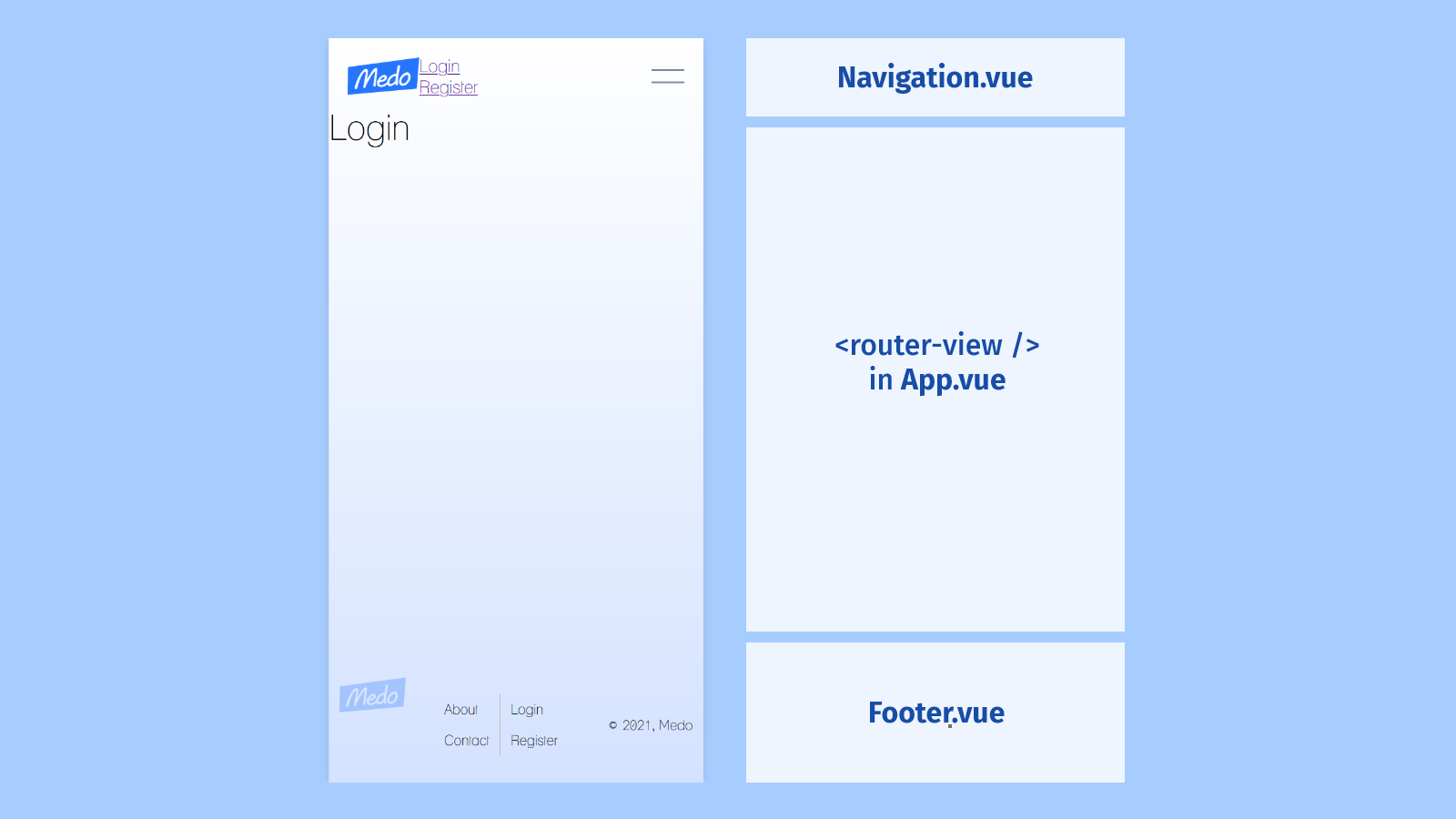
## Styling the navigation menu 🗺️
In order to move on, we'll want to begin styling that `.list-container` class we wrapped around our `` element:
```scss
.list-container {
display: none;
opacity: 0;
height: 100vh;
width: 100%;
position: absolute;
left: 0;
top: 0;
background: $blue100;
z-index: 99;
transition: all 0.4s ease-out;
&.open {
@include flex(row, center, center);
opacity: 1;
}
}
```
Let's break down what this is doing exactly:
- `display` and `opacity` set a hidden default state
- `height` and `width` fill the user's viewport
- `position: absolute` is removing the element from the flow of the page
- `left` and `top` do something different depending on the `position` property. In our case, these properties set the distance between the element and the closest parent with `relative` positioning. **Ours is the root `#app` element.** Along with `height` and `width`, these properties are what make our mobile navigation fill the user's screen.
- Finally, `z-index` brings the element to the forefront of our user's experience. The `transition` property is for later when we're toggling between classes and we want a smooth visual effect.
I also want to point out that **Vue Router** gives us an "active" class, which we'll use to style the currently selected route:
```
a {
text-decoration: none;
color: inherit;
&.router-link-exact-active {
color: $blue500;
}
}
```
With the addition of some base styles applied to our menu items (I used flexbox to center the div, everybody), our `.list-container` menu will appear to the user as you see below; the parent `` element stays in the forefront using `z-index` so that we can still access the toggle.
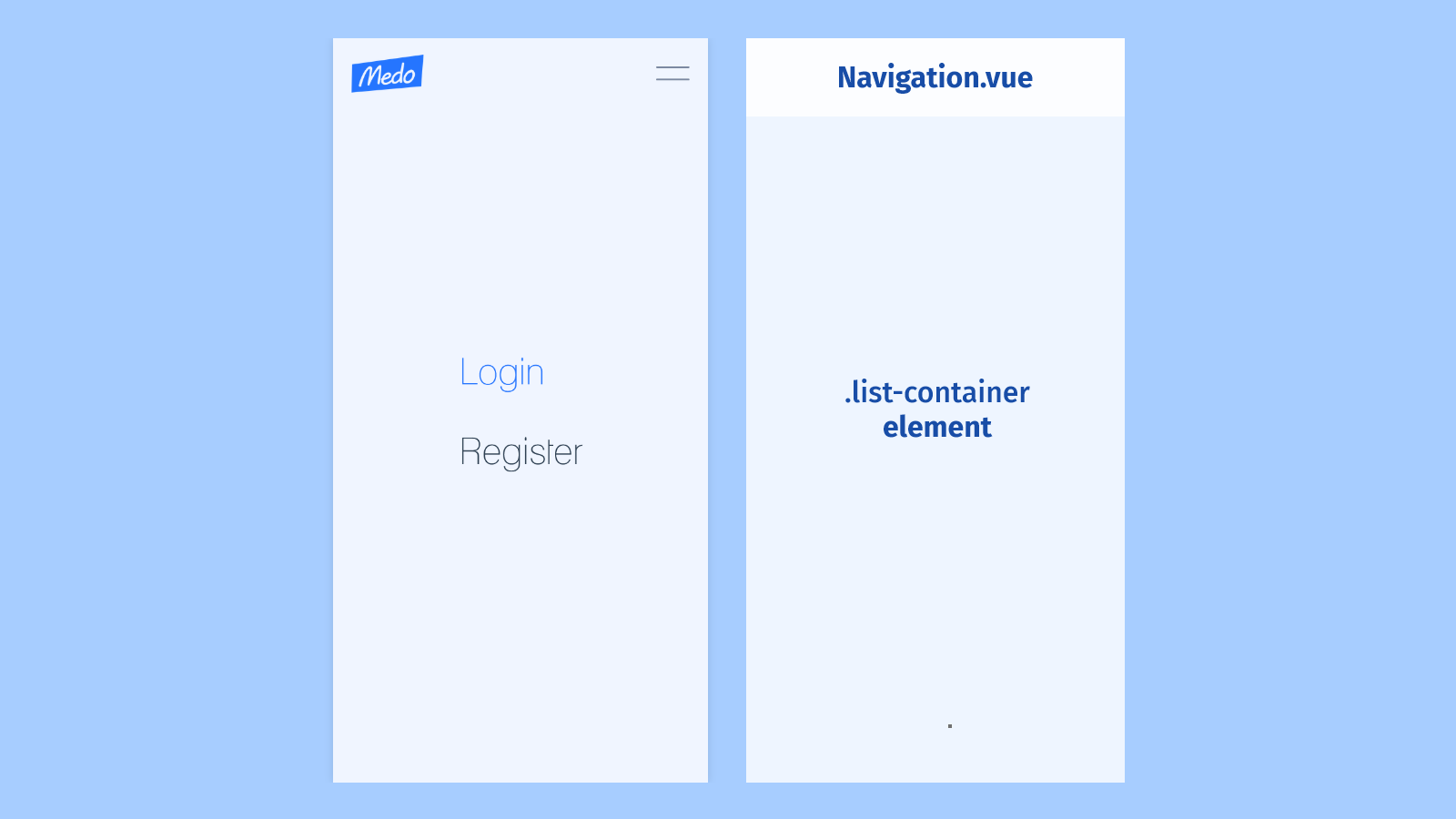
## Where Vue comes in 💚
In **React** we have state: a set of properties which control a component's behavior. State is typically stored and updated with the `useState` hook, or alternatively, within `this.state` in class-based components.
In **Vue**, state is represented with the `data` object (it's really a function that returns an object, but you get it). Once we begin adding properties, Vue "pulls [this object] into its reactivity system and stores it on the component instance as `$data`." That's straight from the docs.
If you're confused like I was about the `$` prefixes in the Vue ecosystem, this excerpt from the Vue documentation might help:
> Vue uses a $ prefix when exposing its own built-in APIs via the component instance. It also reserves the prefix _ for internal properties.
This is why you might see similar references like `$store` or `$route` in Vue components. They're just special Vue APIs that help you do stuff 😇
### Vue's data and method options
The only property our Navigation component needs is one that tracks the menu's open status. We'll initialize this property with a boolean value of `false` and call it `menuOpen`.
```html
```
Now, we need to handle the toggling of this value. We'll do this by adding a `methods` options to our component instance and create our first Vue method!
Vue makes it easier for us to reference `data` values by binding `this` for methods, so and we need to do is define `handleToggleMenu()` and use the logical NOT operator to flip the boolean value of `menuOpen`.
```html
```
### Using v-directives in the template
We're going to bring this component full circle by helping our state and methods **define component style and behavior**, thus driving the user experience. We can do that by turning to v-directives, in particular `v-bind`.
Let's focus first on the `.list-container` element. In addition to the normal class attribute we'd see in typical HTML, we can bind class values with the syntax below.
```html
```
First, as someone who came to Vue from React, I know the string syntax can be a little disorienting at first. I'm used to using brackets in JSX (i.e. `className={}`) and inserting some conditional logic. However the class binding acts in a very interesting way.
With `v-bind:class` (or `:class` for short), what Vue does is measure the truthiness of a property's value inside of the object. So in this example:
1. We provide an object - `{ open: menuOpen }`.
2. Vue sees the `open` property and its corresponding value `menuOpen`
3. If `menuOpen` is truthy, `open` is applied as a class, otherwise nothing happens.
**Note**: It's also important to point out that Vue makes it so that all properties are made available from within a component's template, so we're able to reference `menuOpen` and `handleToggleMenu` with ease.
We can go ahead and replicate this functionality on the burger button element with the addition of the `@click` property.
```html
```
Similar to React's `onClick` event handler, we're able to pass a function to the `@click` handler in order to handle the user's action. This is just one of Vue's many event handlers, including `@scroll`, `@keyup`, `@keydown`, and even `@submit`. Vue also has [event modifiers](https://v3.vuejs.org/guide/events.html#event-modifiers) which are *very* cool and worth checking out.
When we click the burger button now, our menu toggles on and off screen like it should!
## Cascading animation with SCSS 💅
There's one last thing I'd like to do, and that's apply a cascading effect to each individual list item using a `@keyframes` animation. We could accomplish this by hard coding some classes in CSS, but SCSS gives us a much better way.
### Looping with SCSS
SCSS gives us a very easy way to generate as many classes as we'd like with just a few lines of code. We can do this by defining a `for` loop inside of our `` selector.
```scss
li {
@for $i from 1 through 8 {
&.slide-in-#{$i} {
animation: nav-items-enter 500ms ease #{$i / 12}s 1 forwards;
}
}
}
```
Let's break this down...
1. We set a variable to loop over and use the `&.[class-name]` syntax in order to create classes for ` ` tags.
3. We use the variable we're looping with directly within the class names. This way, we can differentiate between each class. This loop is going to generate `.slide-in-1`, `.slide-in-2`, `.slide-in-3`, and so on.
4. The cascade comes in when setting our element's delay, so that each consecutive class is scheduled to begin animating at slightly later times than the last. The first element comes in at `1/12s`, then next at `2/12s`, then `3/12s`. You get it 😉
**But wait**. How do we apply these classes? We could hard code them into our HTML template. But this is the perfect time to introduce lifecycle hooks in Vue.
## Vue's lifecycle hooks ⚓
The lifecycle of a component is an important thing to consider when developing with Vue. **Lifecycle hooks** give us windows into moments of time for a component; from when it's created and mounted to the DOM, to when it's updated or removed from view completely.
The below diagram from the official Vue.js documentation may make the component lifecycle more clear:
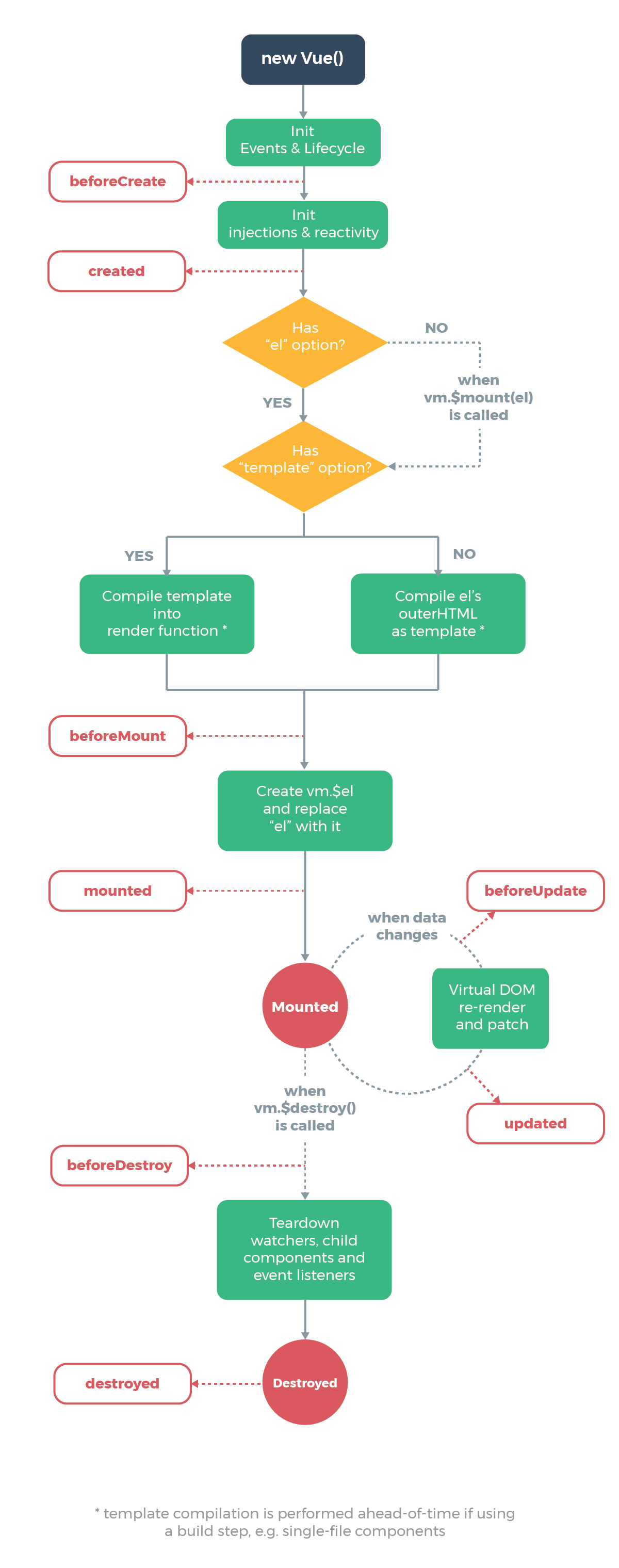
So just like we have for `data()` and `methods()`, we can add the `mounted()` hook to our component instance and write some good old JavaScript to loop over each of our nav items.
```
```
**Tip**: We don't even really need the `mounted()` method to apply those classes. I just wanted to use a lifecycle hook! Alternatively, we can just use the CSS `:nth-child()` selector and loop through that, like this 👇
```
li {
@for $i from 1 through 8 {
&:nth-child(#{$i}) {
animation: nav-items-enter 500ms ease #{$i / 12}s 1 forwards;
}
}
}
```
And *viola*! We have a mobile menu that toggles, and a nice little cascading animation effect for the menu items as well 🥳
**Next up, I'm gonna be building custom input and button components. Hope to see you there 👋**
---
### You can find me on [Twitter](https://twitter.com/matt_pigs) and [Github](https://github.com/mpaitgt) , or you can check out my portfolio [here](https://mattpignatore.dev/) . Feel free to reach out, I'd love to hear from you!